mindO Zoho CRM Integration
How to Set Up the Zoho CRM Plugin
Follow the steps below to connect your Zoho CRM with our platform using the secret key.
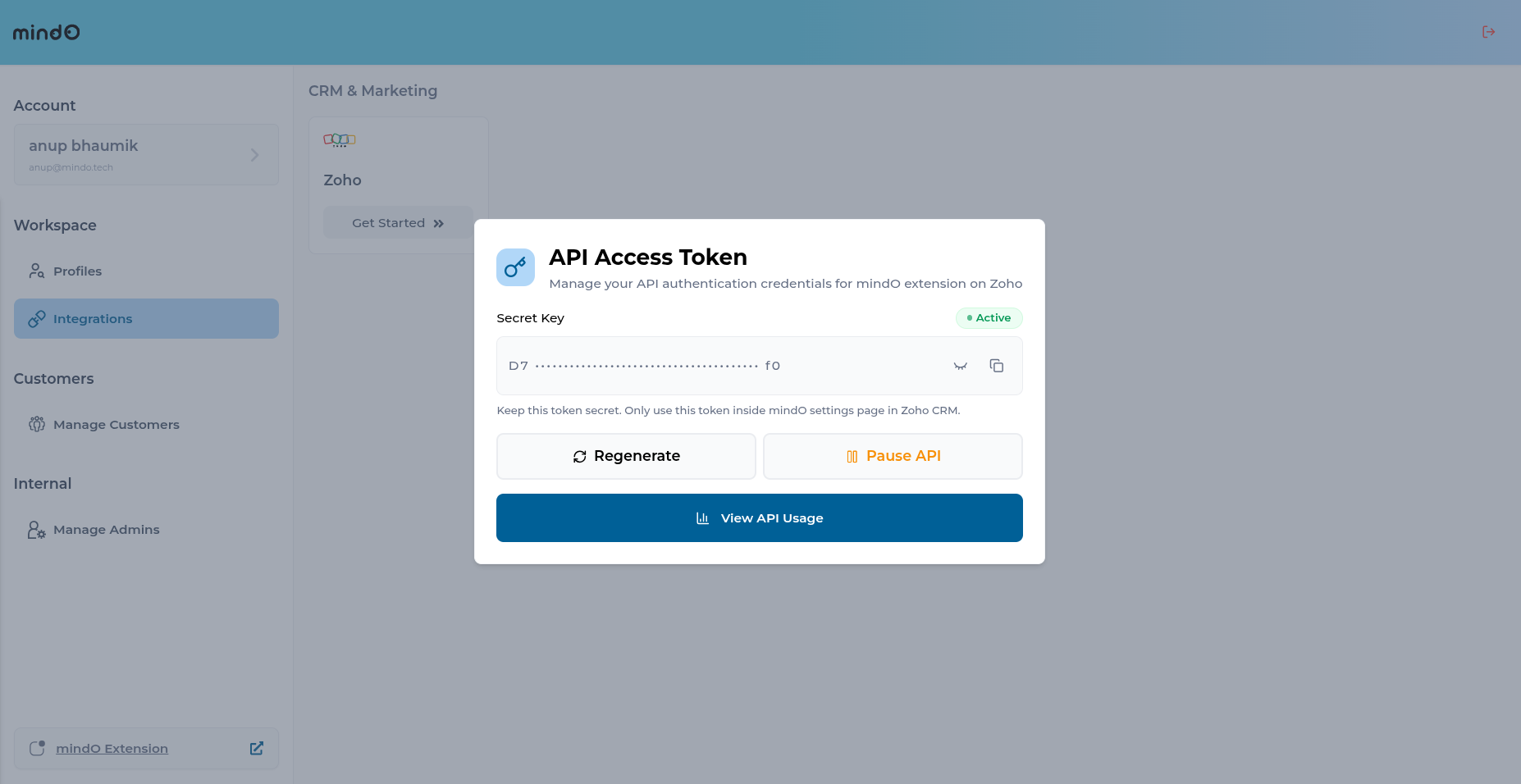
Step 1: Copy Your Integration Secret Key
- Log in to your account on your mindO console
- Go to Dashboard.
- Navigate to Integrations (from the sidebar).
- Select Zoho.
- Copy the Secret Key shown on the page.
Keep this key secure — it’s used to authenticate the connection.
Step 2: Install the Zoho CRM Extension
- Log in to your Zoho CRM account.
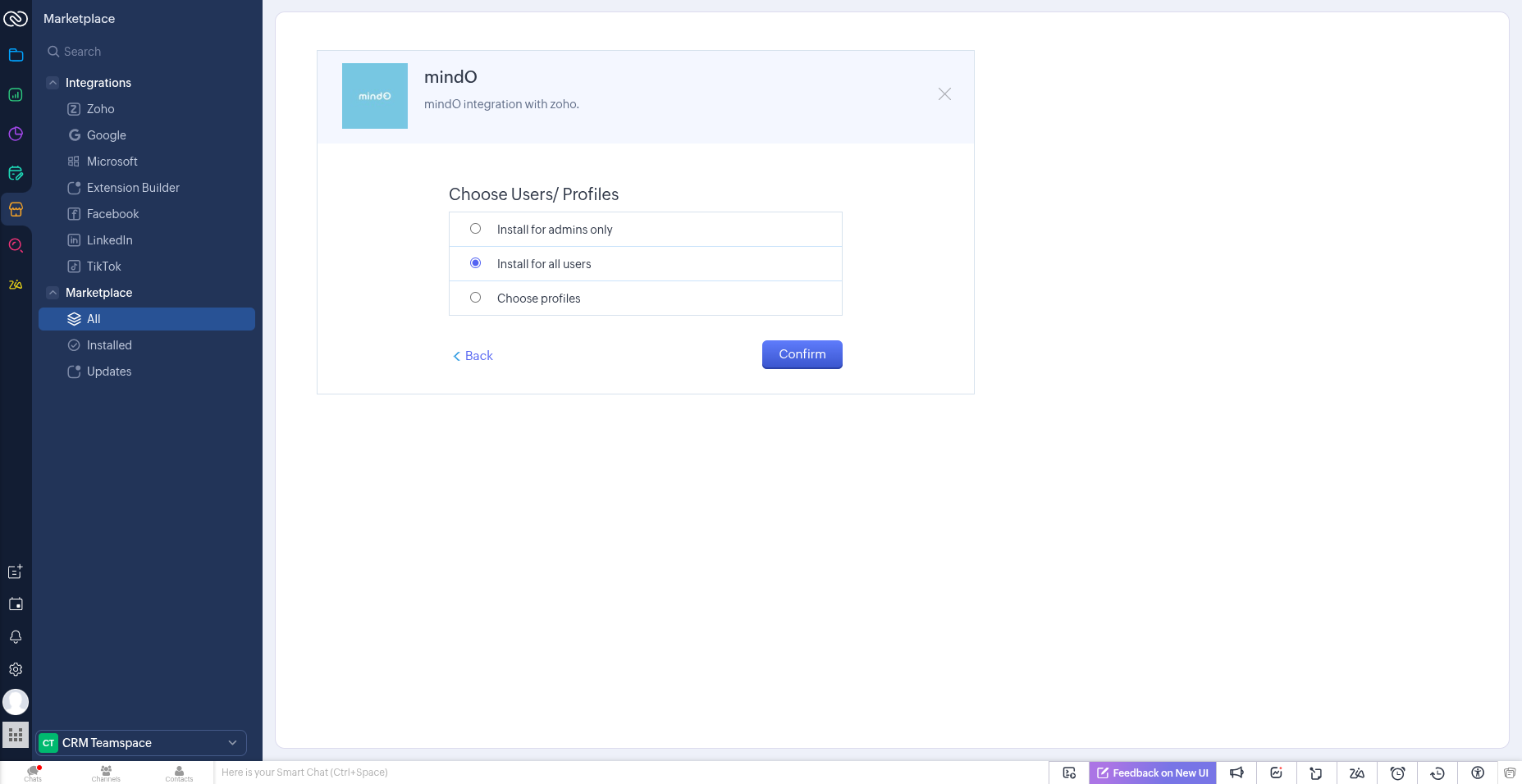
- Navigate to extension install page on the Zoho Marketplace.
- Click Install and follow the on-screen instructions to complete the installation.
- When prompted to Choose Users / Profiles, select Install for all users and click Confirm.
This is required to ensure your organization has access to all the functionality mindO offers.
You may be asked to grant permissions required for the integration to work properly.
Step 3: Open the Extension in Zoho CRM
- After installation, open Zoho CRM.
- Locate mindO in the CRM interface (for example, under Extensions or the top menu).
- Open the extension and go to its Settings or Configuration section.
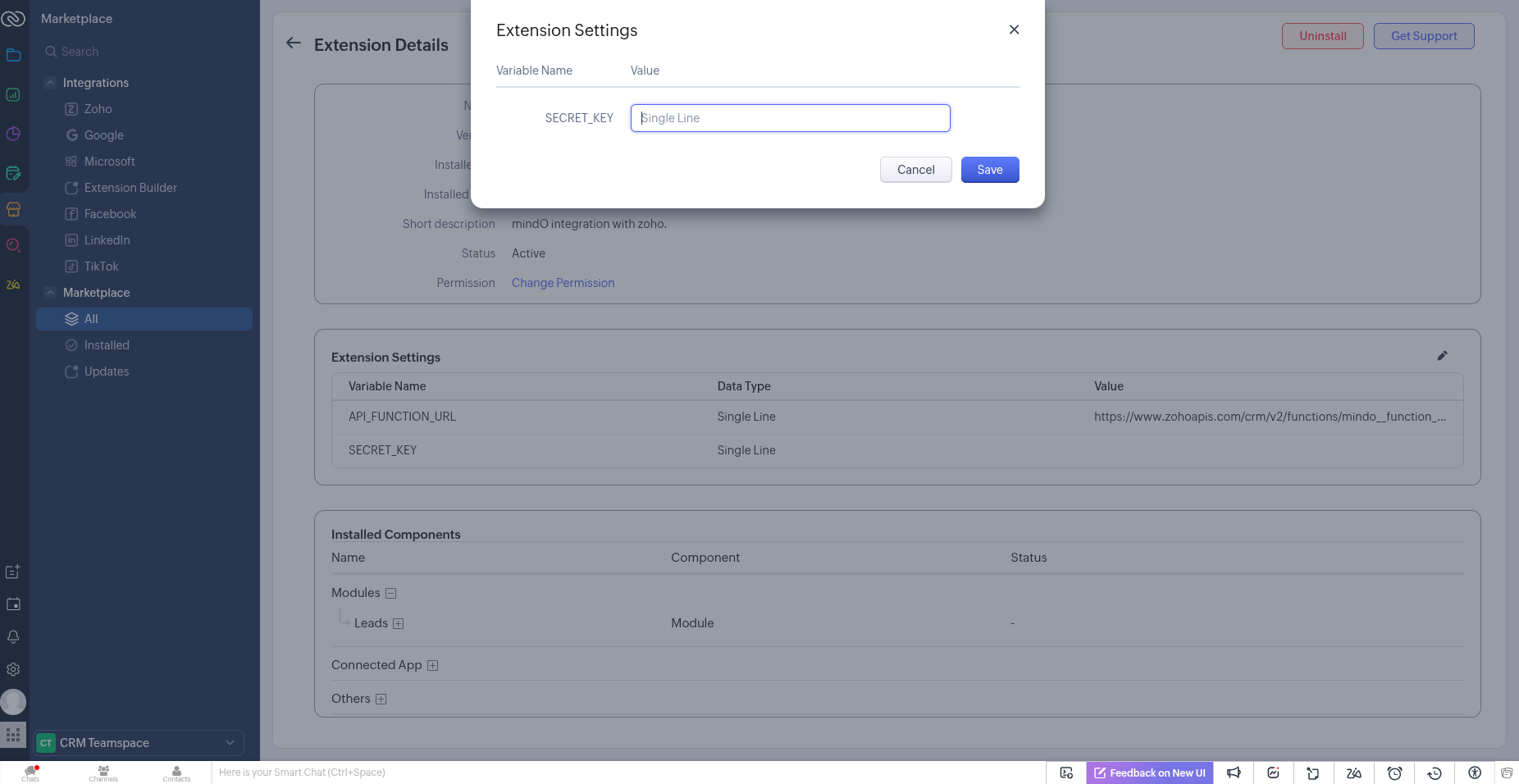
Step 4: Set Up the Secret Key Variable
- In the extension settings, find the configuration variable field (e.g.,
SECRET_KEY). - Paste the Secret Key you copied in Step 1.
- Save your changes.
Step 5: Verify the Connection
Once saved, the extension will authenticate using the secret key. If the setup is successful, your Zoho CRM will be connected to our platform.
mindO is natively integrated with Zoho CRM — giving your team instant access to lead scoring, rep-to-lead compatibility insights, and alignment analysis the moment you open a record. No extensions, no downloads, no IT approvals.
- If you have any questions, please contact us at [email protected]
Use Case Overview And Features
Overview
The mindO Zoho CRM integration automatically enriches your leads using a company’s website URL. Once a lead is created, mindO analyzes the website in the background and generates actionable insights such as:
- mindO Enrichment Report
- mindO Assigned User
- Assignment Score
- Additional mindO-generated fields
These insights help CRM admins and sales teams quickly understand and route leads without manual effort.
Use Case Flow
- User creates a lead in Zoho CRM and enters the Website URL
- mindO performs backend analysis of the website
- mindO generates:
- Enrichment data
- Assignment recommendation
- Enrichment report
- User can:
- View the enrichment summary inside Zoho CRM
- Open the full report
- Auto-assign the lead owner using mindO Magic
Step-by-Step Guide
1. Create or Edit a Lead and Enter Website URL
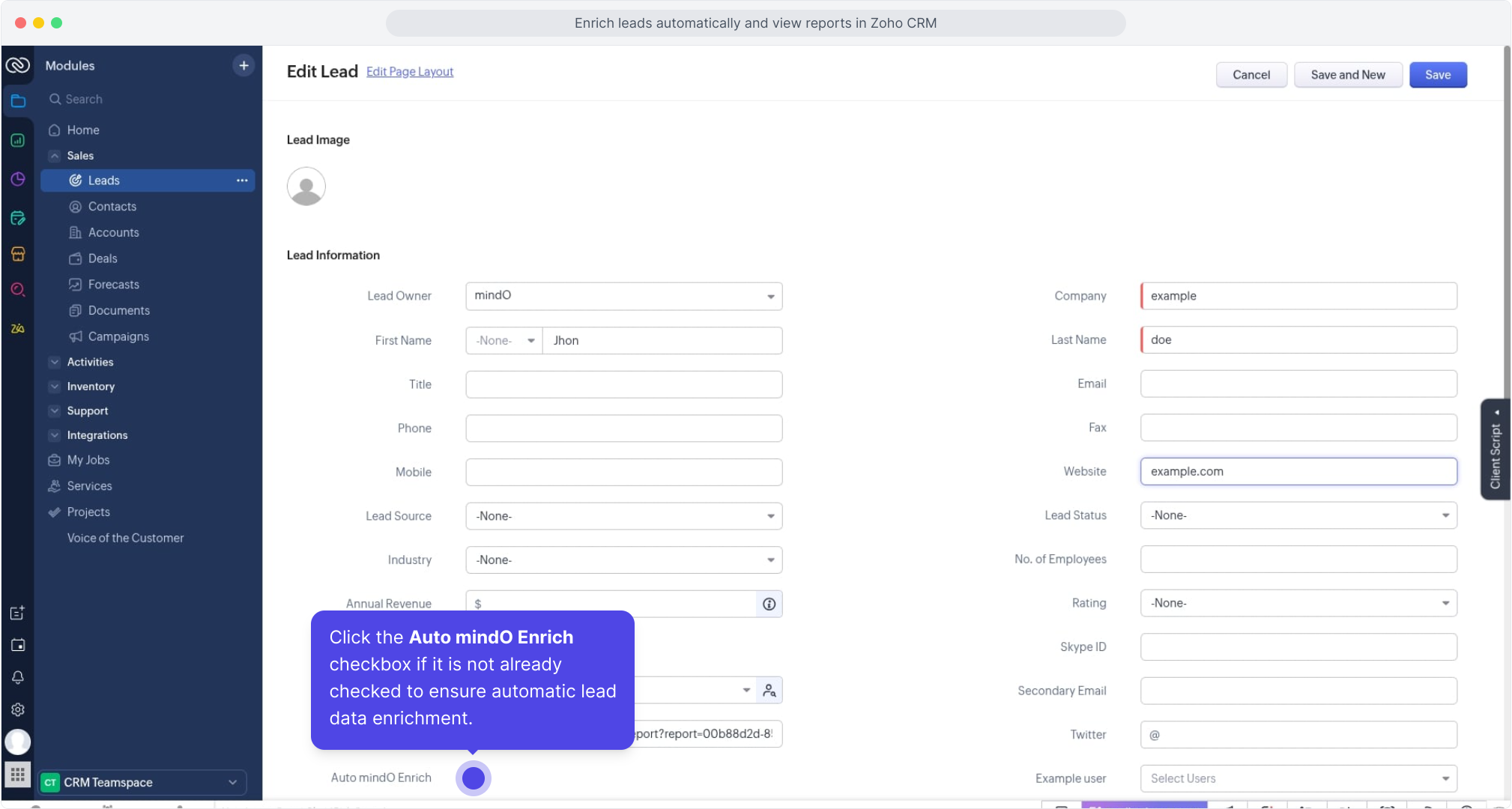
While creating or editing a lead, make sure the Website field is filled.
This is required for mindO to start enrichment.
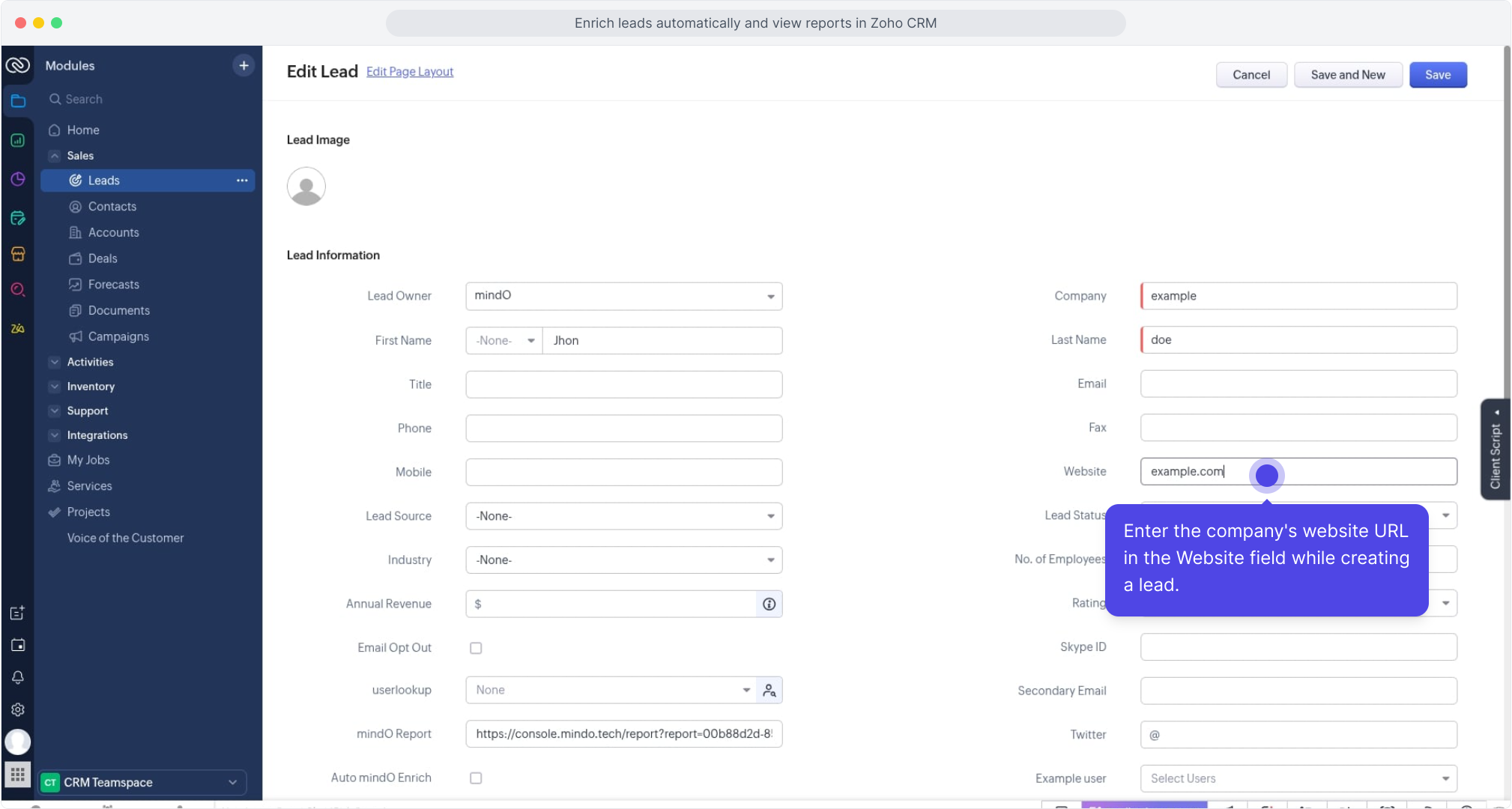
2. Enable Auto mindO Enrich (Optional but Recommended)
Ensure the Auto mindO Enrich checkbox is enabled so enrichment happens automatically when the lead is saved.
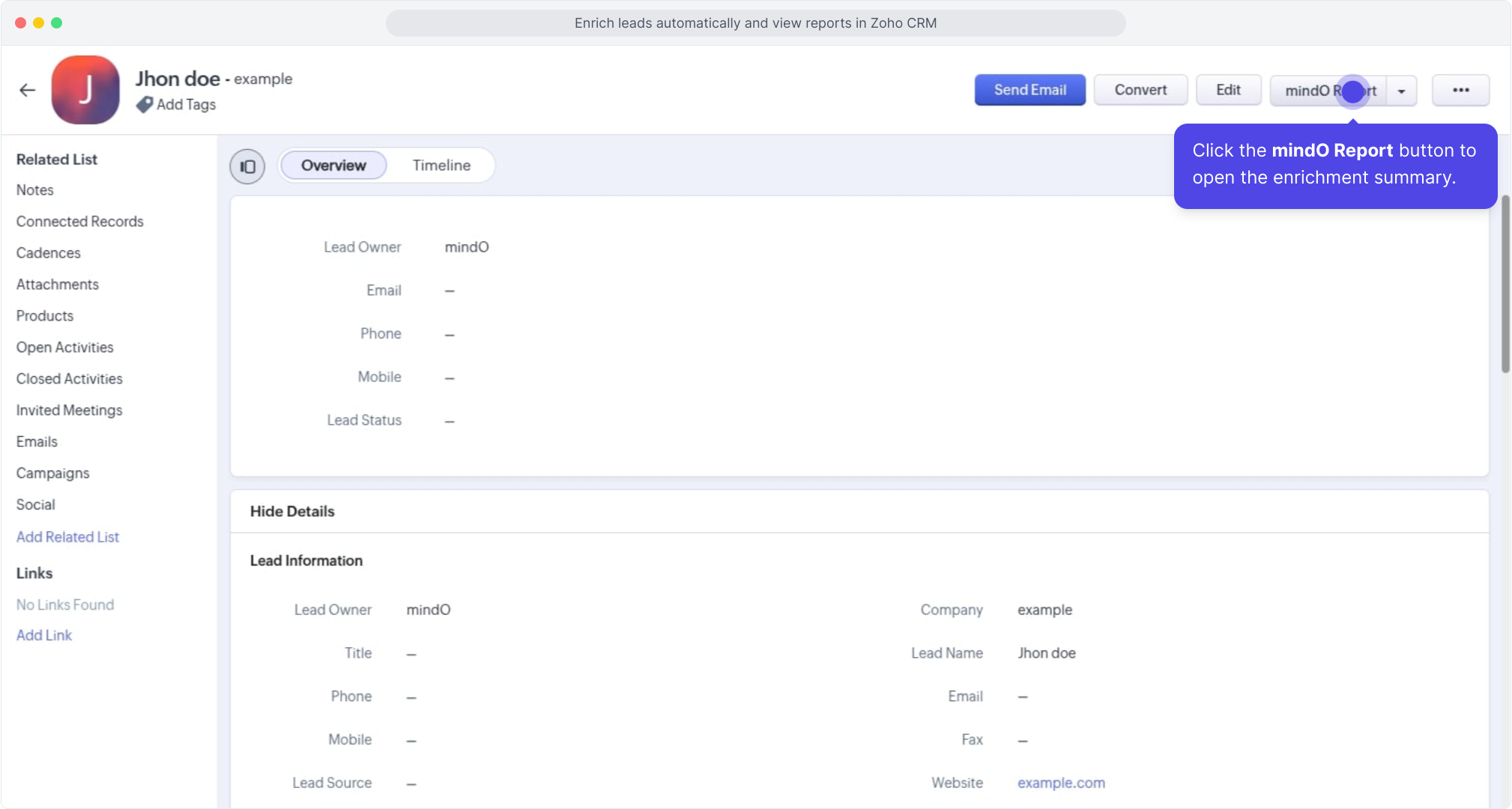
3. View the mindO Report from Lead Details
Once enrichment is completed, click the mindO Report button from the lead detail page to open the enrichment summary widget.
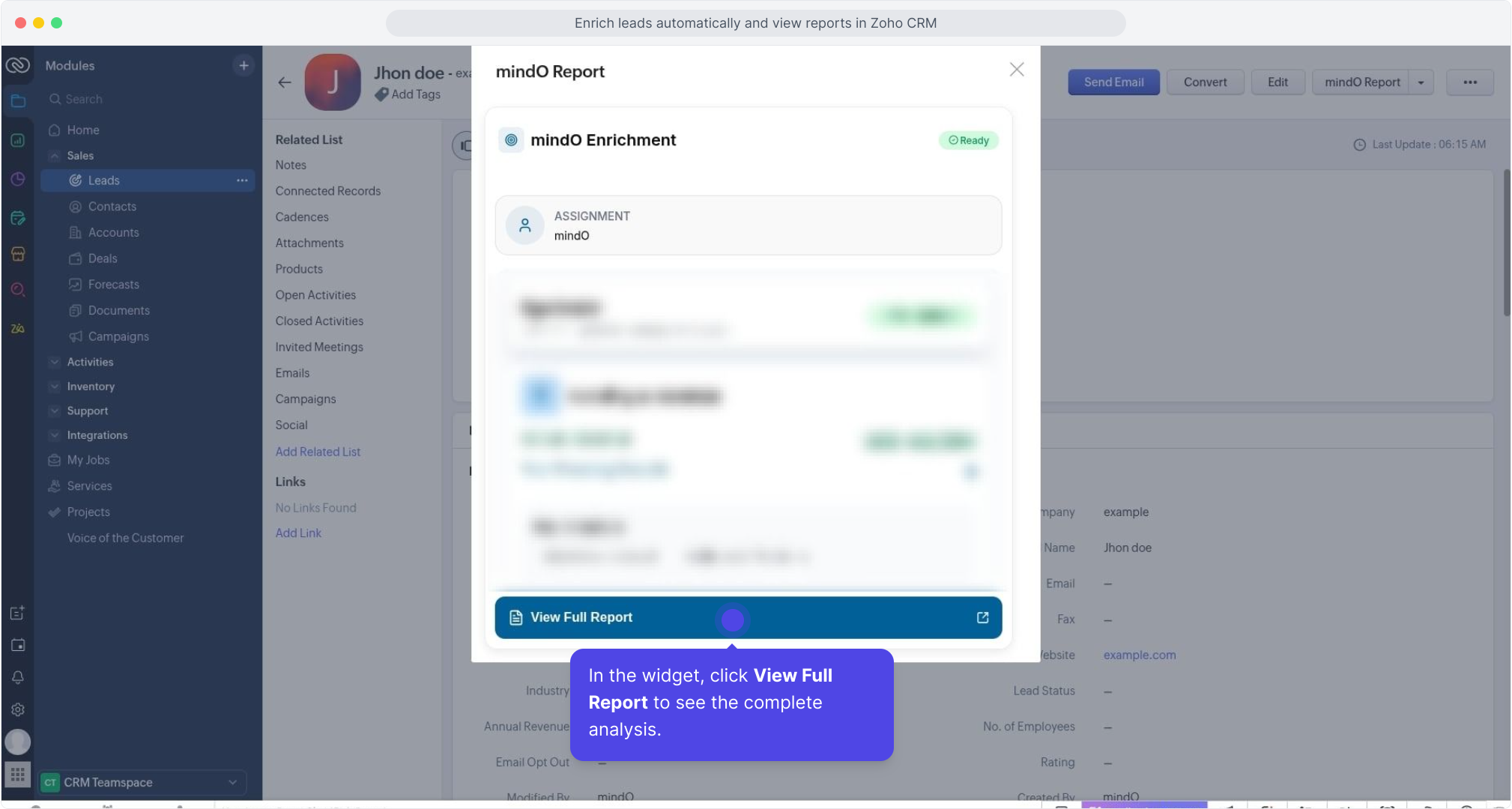
4. View the Enrichment Summary Widget
The widget displays:
- mindO Assignment
- Enrichment status
- High-level insights
Click View Full Report to see the complete analysis.
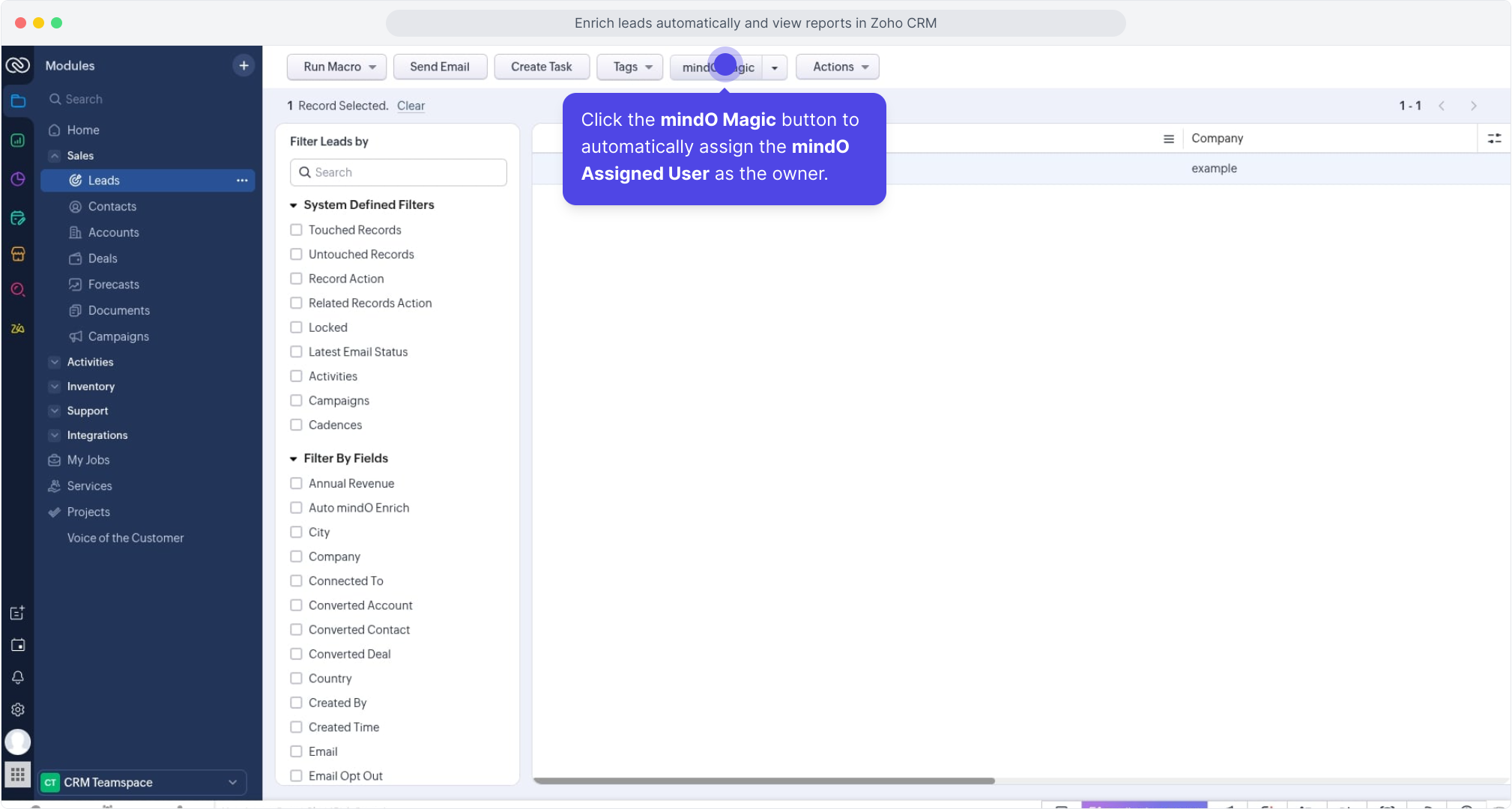
mindO Magic — Auto Assign Lead Owners
5. Select Enriched Leads
To use mindO Magic, select leads that have already been enriched by mindO.
Click the mindO Magic button to automatically assign the mindO Assigned User as the Lead Owner.
This helps CRM admins quickly route leads without manual reassignment.
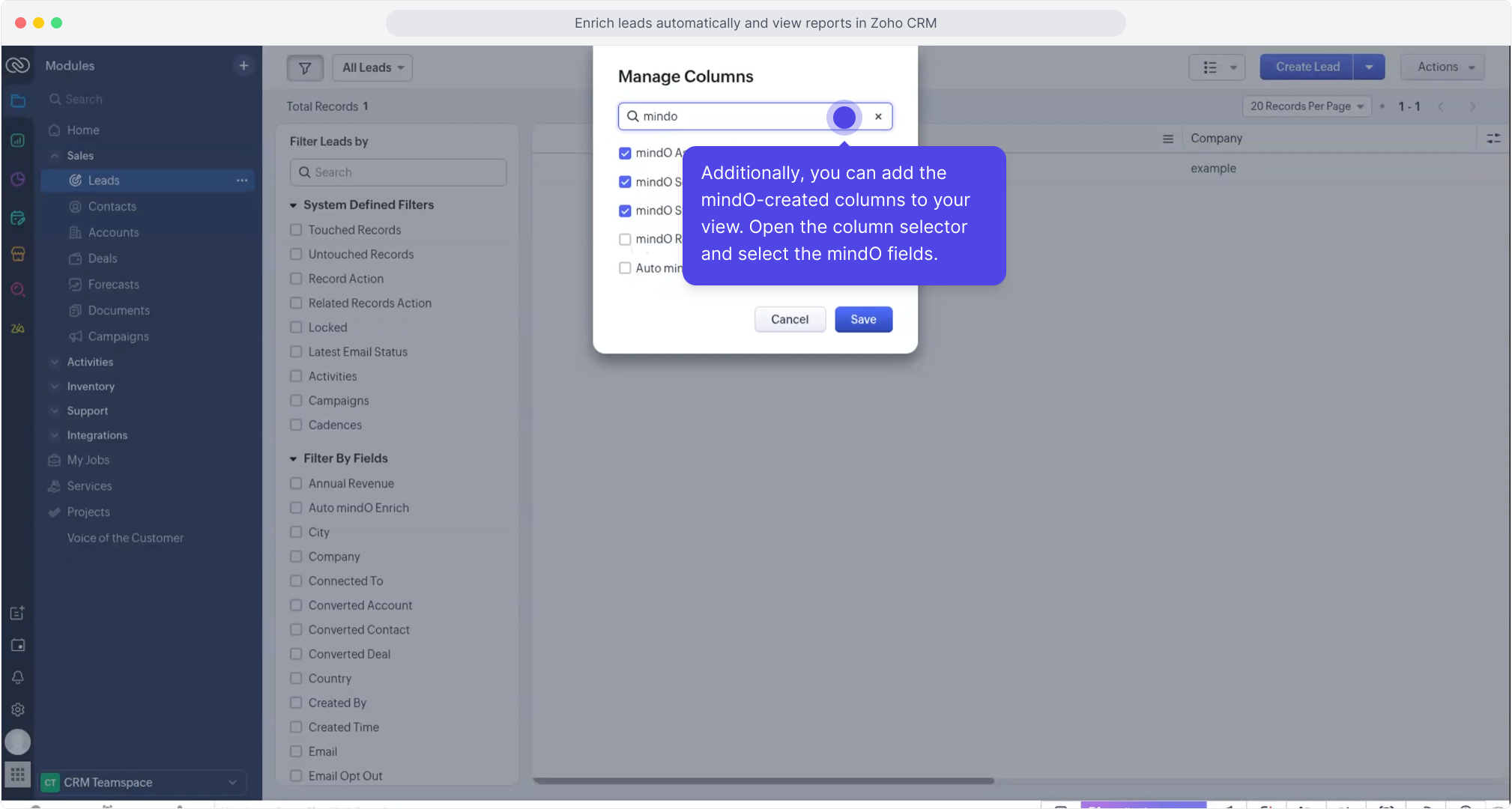
Optional: Add mindO Columns to CRM List View
CRM admins can also add mindO-generated fields to their list view:
- Open Manage Columns
- Search for
mindO - Select the required mindO fields (Assignment, Score, Status, etc.)
This allows quick visibility of enrichment data directly in the leads table.
Key Benefits
- 🔍 Automatic lead enrichment
- ⚡ Zero manual research for sales teams
- 🎯 Smart lead ownership assignment with mindO Magic
- 📊 Full enrichment visibility inside Zoho CRM
- 🧩 Seamless admin-level customization with mindO columns